Features
Build a 3D scene from elements, plug it into your track and export the video. Here is everything the editor can do, each with a piece of it to try.
- 46
- elements
- 33
- templates
- 5
- audio signals
- 3
- formats
Elements
46 elements to build with.
A scene is a stack of elements: rings, particle clouds, tunnels, terrain, text, your own files. Add, hide, duplicate, reorder and tune each one. A template is nothing more than a few of them with chosen settings.
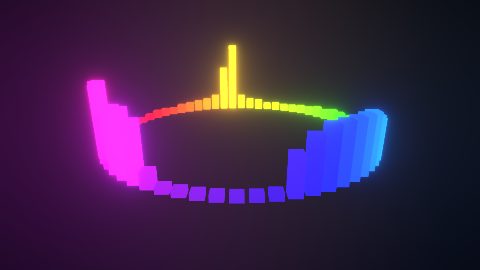 Bar Ring
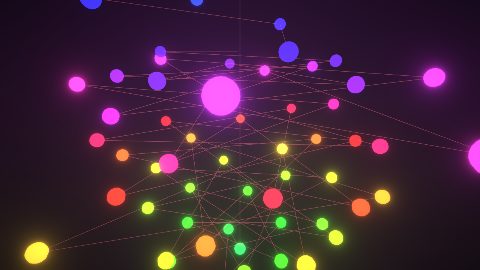 Sphere Swarm
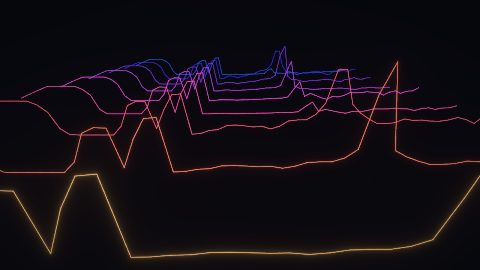 Terrain Lines
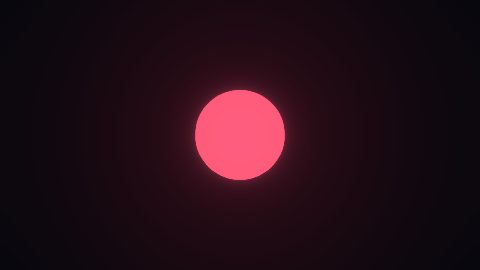 Glowing Core
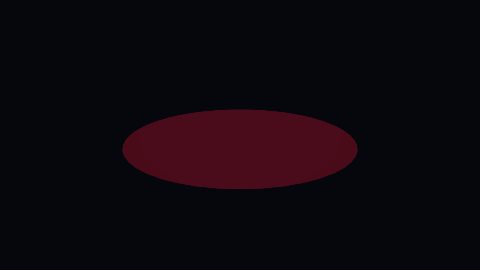 Glow Disc
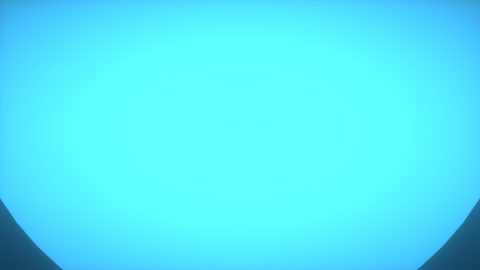 Sun
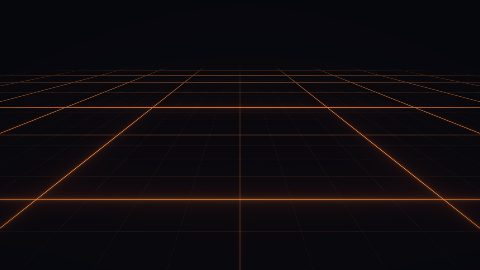 Grid Floor
 Stars
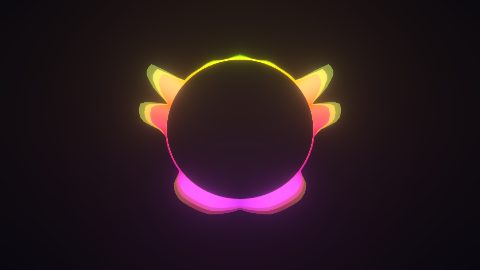 Spectrum Ring
 Particles
- Image
 Gradient Backdrop
- 3D Model
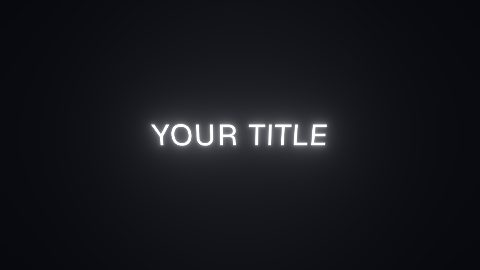 Text
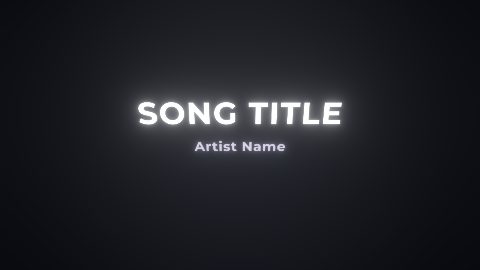 Track Title
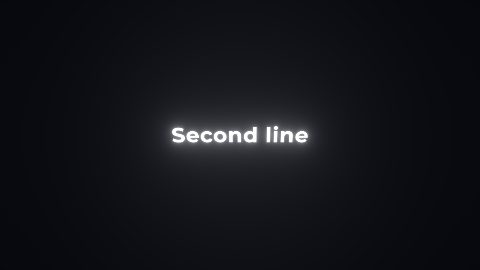 Lyrics
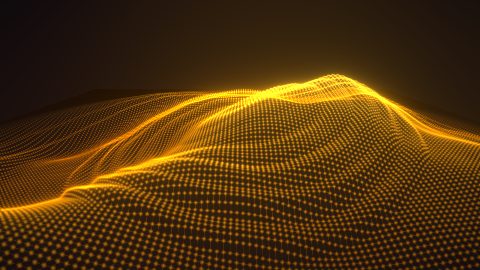 Wave Surface
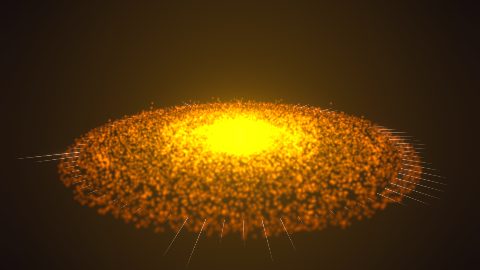 Particle Disc
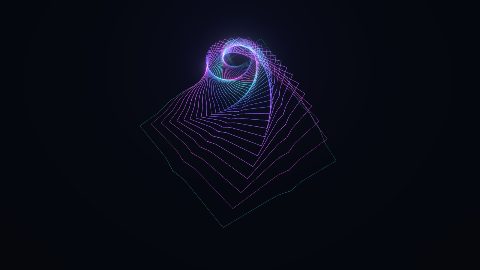 Tunnel
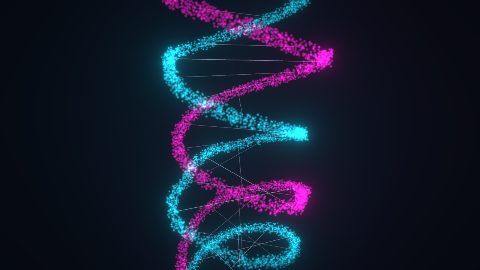 Helix
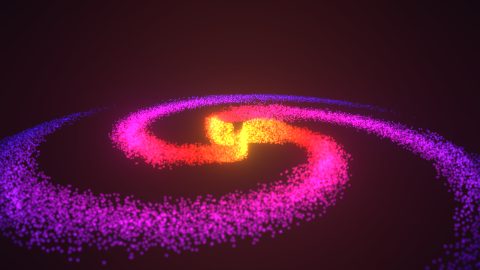 Galaxy
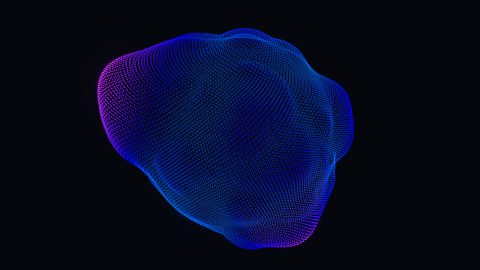 Spike Orb
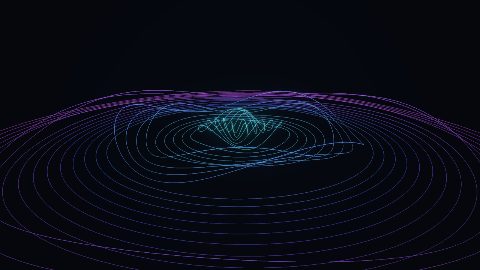 Ripple Rings
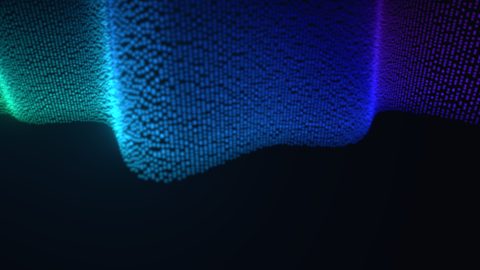 Aurora
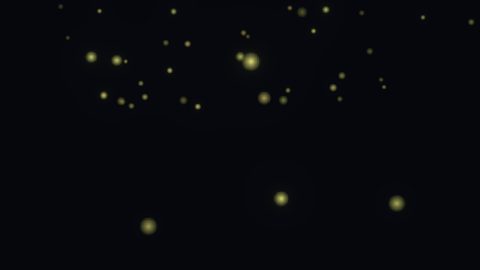 Fireflies
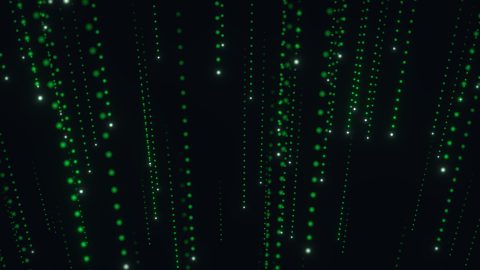 Digital Rain
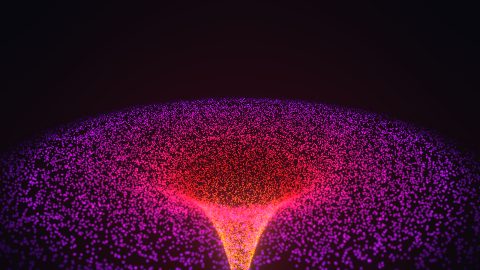 Vortex
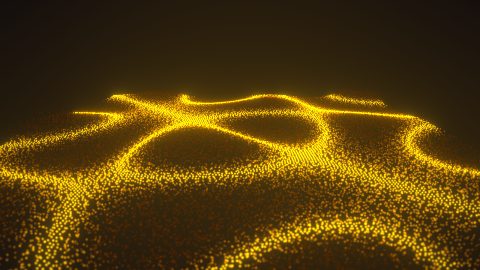 Resonance Plate
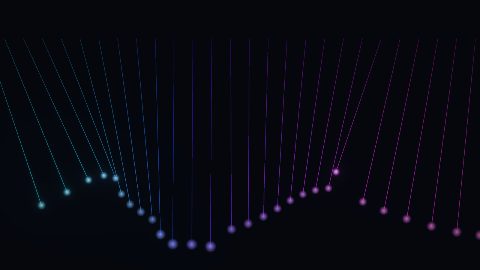 Pendulum Wave
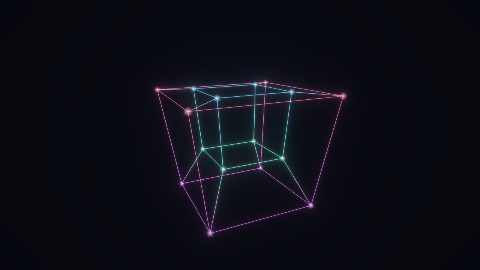 Hypercube
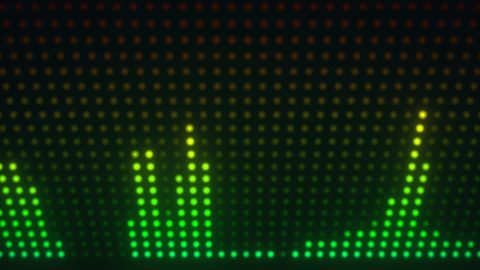 LED Wall
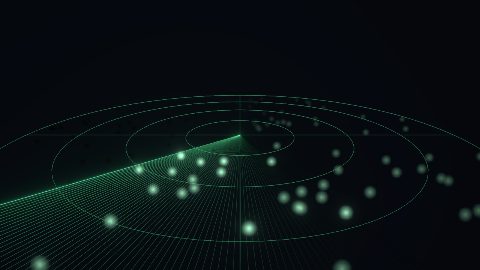 Radar
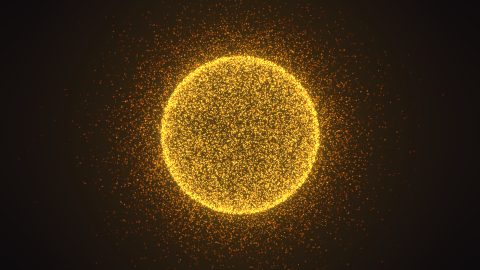 Corona
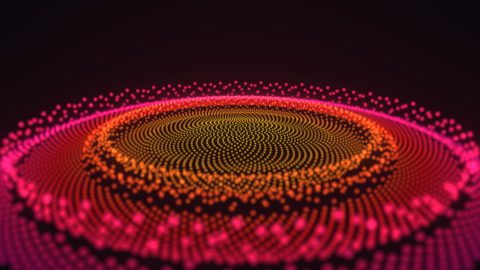 Sunflower
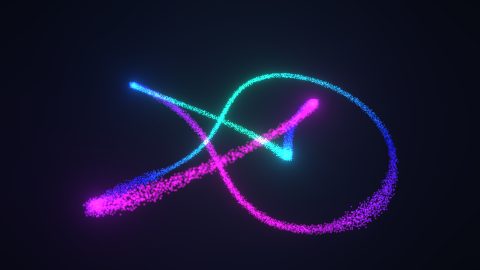 Torus Knot
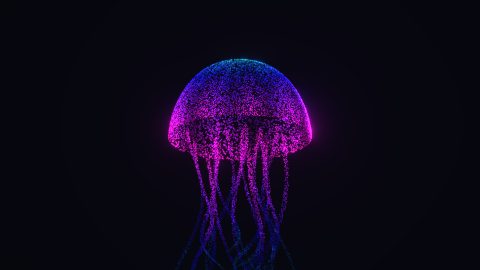 Jellyfish
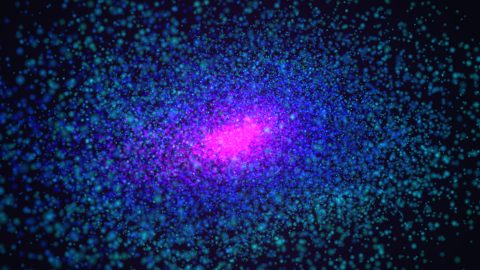 Nebula
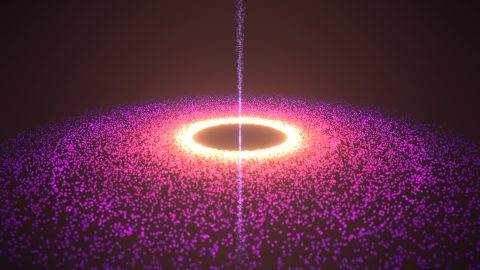 Black Hole
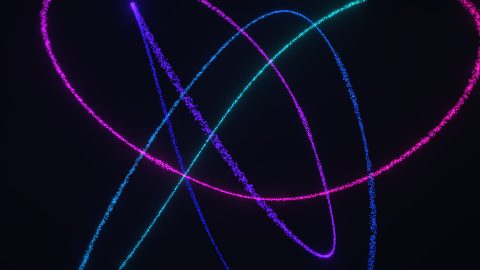 Lissajous
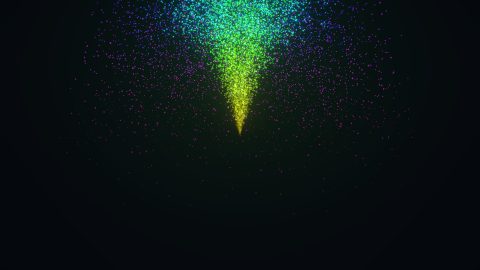 Fountain
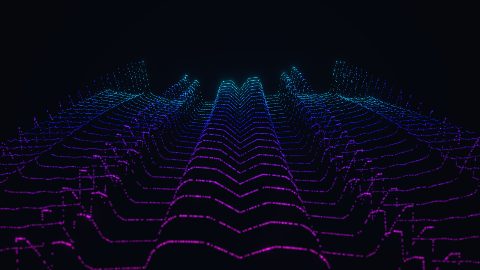 Spectrum Waves
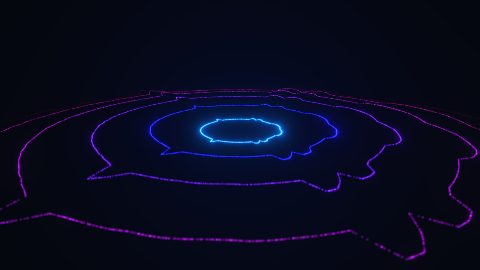 Shockwave
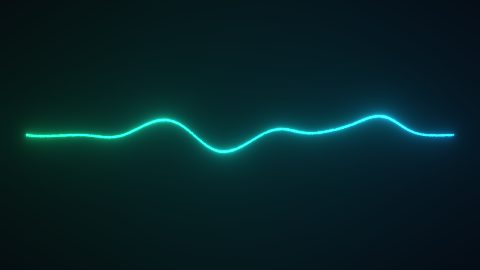 Oscilloscope
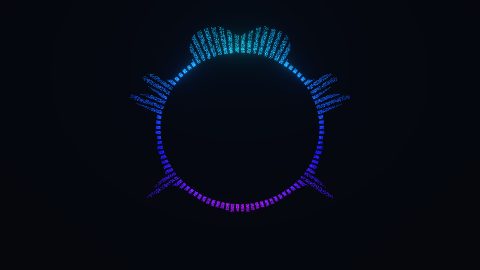 Halo
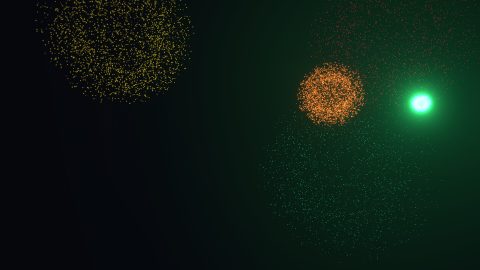 Fireworks
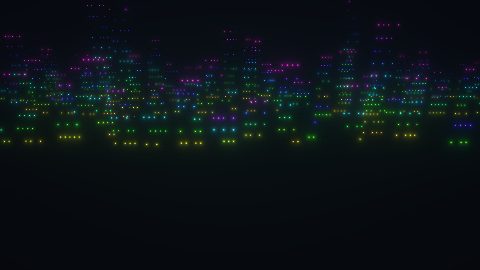 Skyline
Audio reactions
Anything can react to the music.
Your track is analysed once, into five signals. Plug any setting into one of them with one click and set how strongly it reacts.
- Works on element settings, position, rotation and scale, the camera and the look
- Each signal keeps its colour everywhere, so you always see what drives what
- The amount is yours: a gentle breath or a hard kick
- BassThe low end: kick and bass line.
- MidsVocals, guitars, synths.
- HighsHi-hats, cymbals, air.
- LevelHow loud the whole track is right now.
- BeatA short pulse on every beat that was found.
Bar height reacts to bass
Choose a signal for bar height. The coloured line under a value shows how far the music pushes it.
Animate over time
Set a value now and another later.
The diamond next to a setting switches it on. From then on, changing the value sets a keyframe at the playhead, and the value travels between them.
- Three ways to travel: straight, smooth, or hold until the next keyframe
- Keyframes sit in the timeline under the waveform: click to go there, drag to move, Alt-drag to copy
- The timeline zooms in up to 16 times
- An audio reaction is added on top of the animated value
Glow travels from one diamond to the next while the playhead crosses the track.
Camera moves
Direct the camera with one button.
Push in, pull out, crane, zoom punch, dolly zoom and impact. Each button writes ordinary camera keyframes starting at the playhead.
- Place a move on a drop, a break or the last chorus
- Drag its keyframes to make it longer or shorter
- The camera can also orbit, sway and shake with the bass on its own
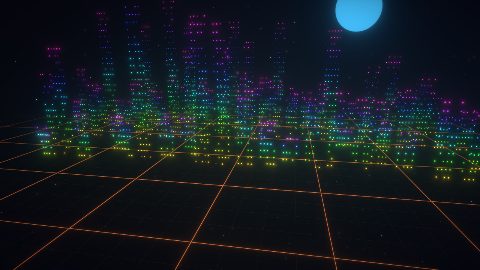
A flat sketch of each move. In the editor the real camera flies through the scene.
Tempo swing
Slow down, speed up.
Every element has its own clock. Let it swing in an even wave, or on the beat: the motion surges on every beat and falls into slow motion in between.
- Set how deep the swing goes and how long one wave lasts
- Each element swings on its own, so layers can drift against each other
- 15 of the 33 templates use it out of the box
Pick a mode and watch the dot change its pace.
Your own material
Bring your logo, your cover, your words.
Your own files are elements like any other: place them, scale them, let them react.
- Pictures as PNG, JPG or WebP up to 10 MB, rectangular or cropped to a circle
- 3D models as .glb up to 50 MB, fitted to size and slowly turning
- Text in 6 typefaces, and a track title with the artist underneath
- Lyrics: one timed line per row, .lrc times work too
Bar ringStarsYour picture lands in the layer list, on top of the scene.
- 0:12 First line of your song
- 0:16 The next one, right on time
- 0:21 And the one after that
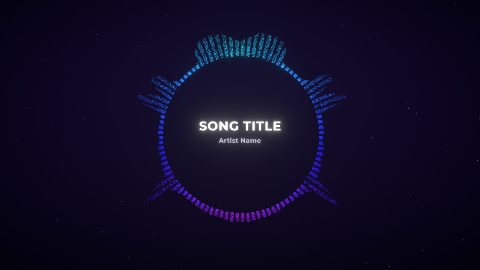 First line of your song
Each line fades in at its time and out again.
Formats and export
One scene, three formats.
Landscape for YouTube, portrait for Reels, Shorts and TikTok, square for feeds. Switch format and the camera adapts, so the scene stays in the picture.
- Free exports up to 720p at 30 fps with a small watermark, Premium up to 4K at 60 fps without one
- The resolution names the short side: 1080p is 1920 x 1080, 1080 x 1920 or 1080 x 1080
- Export the whole track, 15, 30 or 60 seconds from the playhead, or any section you mark
- Videos are drawn one after another; you see your place in the queue and the progress
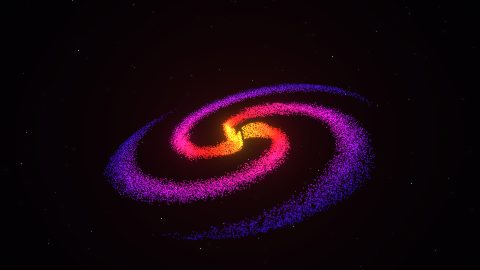
Preview is export
What you see is the video.
There is no separate export engine. The preview in the editor and the final video are drawn by the same code, frame for frame.
- The preview always plays at 60 fps; the export runs at the frame rate you choose
- The watermark of the free plan is shown in the preview, exactly where the video has it
- Nothing to guess, nothing to re-export
The same loop twice, held in step.
And the rest
The small things that make it an editor.
Colour palettes
12 palettes recolour a whole scene in one click.
Click it in the picture
Select an element by clicking it in the preview, then move, turn and scale it right there.
Undo and redo
Every change can be taken back, including loading a template by mistake.
Your own templates
Save a scene as your own template and share it by link. The link carries the scene, not your track or private files.
Projects and videos
With an account, projects are saved with a picture and finished videos wait in the dashboard.
Keyboard shortcuts
Play, undo, save, duplicate and nudge from the keyboard. The list is one key away.